You have to send an email with day by day with the content that almost the same? A daily report? Or a email that you want to send to many people and for each, you have to change some details, a invitation for example? In normal, you have to save the text somewhere then copy them in compose email window then change the information -> send, sometimes you may forget and save another text in clipboard. It's not hard to do but when Gmail can support you to do the same work, why you don't try it? See the full instructions in gmail templates.
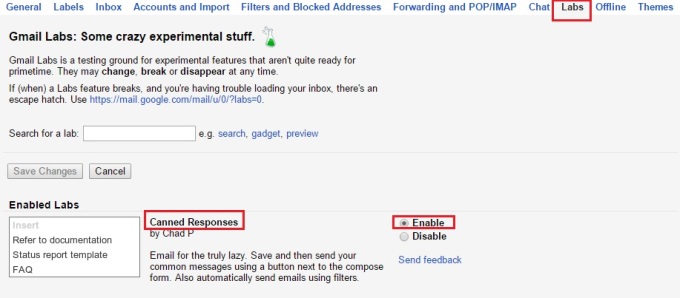
The feature will help you to save and then send your common messages using a button next to the compose form named "Canned Responses". First, to enable it, you have to click in the gear icon in the right side then choose settings. In the top of settings section, let's choose "Labs" tab, then choose enable. Scrolling to the bottom of Labs tab then choose "save changes".
When you compose a email that you want to send in many days or to many people, remember to leave a blank in the details that you will change it regularly, like date, name... When it's done, click the tiny arrow in the lower right corner of the compose window, choose "canned responses" (the second choice), and under the Save heading, select New Canned Response. Gmail will pop up a small box to ask you for the name of your response, just give it a name and click OK.
Then, the next time you compose a message with the same content, let's hit compose button, type your recipient's email address, then choose the tiny arrow last time to see your saved canned responses by move the mouse to "Canned Responses", under insert, choose one of your saved message to insert to your compose window, the subject of the email will be the name you choose for your saved templates
Change some details if you want then send it as always :)

No comments:
Post a Comment